





The following article is provided as a free service to our customers and visitors.
However, Darwin IT is not responsible for any damage as a result of following any of this advice.


All Trademarks and Registered Trademarks are the property of their respective Owners.
2005 – 2024 Darwin & Associates IT, All rights Reserved
Basically, Computer Repair Maintenance is the process of identifying, troubleshooting, and resolving computing problems in computers (PC and Laptops), screens, and devices such as mobile, routers, cards, etc. In addition, it also includes other activities of managing faulty computer hardware, software, or even things like Ethernet, Internet, drivers, and the like.
It’s important to realize, that computer repair maintenance service solutions are a broad field encompassing many tools, techniques, and procedures. Used, in particular, for computer repair maintenance associated with general computing problems.
In other words, computer repair maintenance is also known as PC repair. And, therefore, this is the practice of keeping computers in a good working state away from repairs.
Everybody with a computer knows that moment of panic when the hard drive crashes. And for business people, it usually happens when they’re staring into the eye of a deadline. For example, a computer containing accumulated dust and debris may not run properly.
Simply, because dust and debris will accumulate as a result of air cooling. And any filters used to mitigate this need regular service and/or changes.

In the end, after troubleshooting, hardware parts are added or replaced if an error is detected. This usually requires special equipment and accessories to disassemble and reassemble the computer. Software-
Installed application errors, viruses, and other software issues are also identified. Similarly, computer repair for network/Internet issues allows a computer to completely utilize available network services.
Below you’ll see the general tips for successful computer repair maintenance. And first, you should start with how to repair the simple errors that your computer may have.

The first common error that computers usually have is the blue screen error. And for this matter, people should:
A harder time will come when your PC refuses to load any data. These data will get access to your PC through loopholes in the operating system or in application software.
For fixing your PC and eliminating these programs, you should scan your computer with a proper anti-


The Windows Registry holds information regarding hardware and software settings on your computer. If a malicious program corrupts the Registry, it may result in a blue screen error.
These problems could be fixed either manually, by editing the Registry directly, or with third-

Your computer may freeze on account of software or hardware problems. Thus, you should find out the exact reason for it to figure out the best way to repair the errors. You should notice whether or not the issue starts when you connect any hardware peripherals, such as a scanner or printer.
After that, it might be due to a driver conflict. In case the latter happened after you assemble a new hard drive, it may be due to improper power or the too high temperature. Below steps could help to solve the issue:

In case you leave the computer all the time, you could fix the error by unplugging it, then wait a minimum time of 30 seconds, and plug it back in.
Just by cutting the computer power off to the motherboard, the hardware in your computer will be able to reset and clear the memory.

It is necessary for you to take a look inside for the PC temperature. You should notice yourself that all the time you need to open your computer cabinet up, you should shut down the PC and unplug it. If your hair is long, you should tie it back.
Then again, you need to take any jewelry off that may get in the way. Whereas, you should also avoid wearing clothes that can produce a lot of static that can cause intermittent and harm the hardware, making it harder to address the errors.

If it is really hot, there will be certainly thermal problems. You should examine the front and rear fans gently and blow out the dust. You should also clean the fans regularly. Before you clean the computer, you need to remember to shut down it.
As a matter of fact, if you are having more than a hard drive in the computer, you should avoid installing them. Especially right after running each other in the chassis as this can make them easier to get a failure on the heat.
Another key point, before closing up the case, you should remember to check all the cables to ensure that everything is still plugged in. If you need to reset a stick of memory or video card, you should not apply heavy pressure to the motherboard because this will become damaged.

Your hard disk is a storehouse of information, so when it gets used for a long duration it might get cluttered and patchy; this slows down the performance of your computer. Hence, use your Windows utility CHKDSK to scan and remove bad sectors on a regular basis.
It is the best preventive way of maintaining computer health.

Many times, when doing a Windows Update, your system may download and install an incorrect driver, which may result in the computer freezing. You can check the status of drivers from Device Manager. Unplug your USB device, if connected.
Power-

computer repair maintenance is handled by specialized computer repair technicians. Typically, a hardware fault requires the physical review of a computer and testing for abnormalities.
Suspected components, such as random access memory (RAM), hard disk, power supply, or optical drive may be individually checked. So, besides the perfect computer repair maintenance tips gathering above, you should also learn ways to go about it. Below are some good pros and cons you should consider:

When you come across labels that say “No serviceable components inside”, you should not catch it as even a suggestion or a challenge.
This is a serious statement. Some parts of a computer are just not meant to be repaired, even by the most professional computer repair person.
You will usually see this warning on power supply units. But you may also see them on monitors, hard drives, optical drives, and other dangerous or highly sensitive components.
Capacitors are miniature electronic components contained in many of the parts inside a PC.
These capacitors can store electric charges for a short while after the power is turned off. So it’s a wise decision to wait a few minutes after pulling the plug before working on your PC.
Try to use security software such as face recognition software, thumbprint recognizing software to log in to your PC.


Usually, computer systems send heated air through the back openings. Cooling fans reduce your PC’s temperature.
One of the simplest tips for computer repair maintenance to get electrocuted is to work around a high voltage device. Like a power supply with metal rings, watches, or bracelets on.
So, remove anything conductive from your hands before working on your computer, especially if you’re doing something like testing your power supply.

If you see smoke coming from inside the case, power supply, or smell solder scent, or burnings you should:
- Immediately stop what you are doing,
- Then, remember to unplug the computer from the wall,
- Lastly, let the PC cool or discharge unplugged within at least 5 minutes.
If you know which device was generating the smell of smoke, you should replace it and remove it as soon as possible.
You should not try to fix a device that has been damaged to this extent, especially if it is a power supply.
As a second precaution, it is wise to unplug the computer from the power strip or wall. If there was any doubt as to whether the computer was off before, it is settled now.

Your PC’s keyboard and motherboard are very sensitive. As it is made of electronic parts liquids can damage them easily.
Clean your computer with PC cleaning tools. Dust and other small particles may cause blocks in your system and cause overheating problems. The disk error checking utility checks your hard disk for errors and repairs it.
The cyber-
You should always use an anti-


Windows includes several different types of backup and recovery tools. And we’re going to take a look at all of them.
Sometimes, bad things happen to good computers. Fortunately, Windows includes a number of tools you can use to make sure your files are properly backed up and to recover your computer should you need to.
On the backup side of things, File History is the primary backup tool in Windows 8 , 10 and 11. It offers not just full backups, but also a way to restore previous versions of files. Microsoft also includes the old Windows 7 Backup and Restore in both Windows 10 and 11 and it works the same way it always has, allowing you to perform selective or even full image-based backups. And while it’s not really a true backup solution, the inclusion of OneDrive does let you build a little redundancy into your file storage.
On the Recovery side of things, Windows offers a full recovery environment you can use for troubleshooting and recovery, as well as the ability to fully reset your PC to it’s default settings.

File History was first introduced in Windows 8 and continues to be the primary built-
By default, File History backs up important folders in your user folder like Desktop, Documents, Downloads, Music, Pictures, Videos, and parts of the AppData folder. You can exclude folders you don’t want backed up and add folders from elsewhere on your PC that you do want backed up.
When you need to recover files, you can browse through the whole collection of backed up files and folders.Or you can restore previous versions of files from right within File Explorer. File History gives you a pretty reliable way to make sure your personal files are regularly backed up.

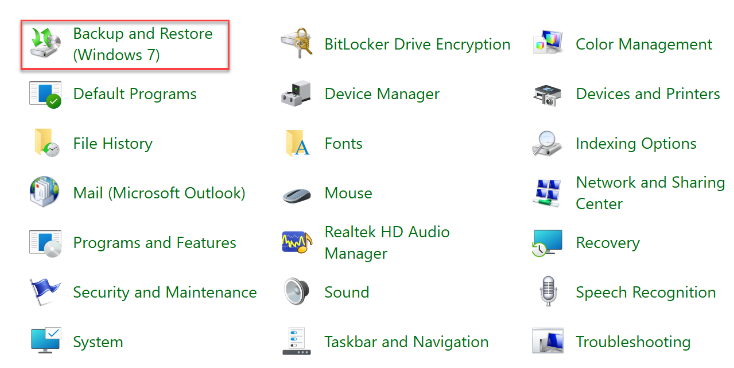
Microsoft also kept the old Backup and Restore feature from Windows 7 around. It was available in Windows 8, removed in Windows 8.1, and is back in Windows 10 and 11. The Backup and Restore (Windows 7) tool allows you to restore any of your old Windows 7 backups onto your Windows 10 computer likely why the tool is still around but you can also use it to back up your Windows 10 and 11 PC in the exact same way you’d back up a Windows 7 PC.
Unlike the newer File History backup solution, you can use Backup and Restore to more easily create a backup of practically everything on your hard drive. However, it also does not feature File History’s ability to maintain older versions of your files.
You can find the tool by hitting Start, typing “backup,” and then selecting “Backup and Restore (Windows 7).” Setting up the backup is pretty straightforward. You’ll choose an external drive (or network location), pick the folders you want to backup, and set a schedule. After that, everything’s automatic.

Also available in the Backup and Recovery (Windows 7) tool, you’ll find an option for creating a full system image backup rather than just creating a backup of select folders.
This tool creates an image snapshot of your entire system—personal files, installed apps, operating system files, and everything else. The advantage of using an image backup lies in the recovery. Should your hard drive fail, you simply have to replace it and then restore the image. You’ll be right where you left off, without having to reinstall Windows, all your applications, and then copy your backed up files over.
While they sound great—and they mostly are—there are a few downsides to using an image backup. The backup process itself is a little slower, though still should happen easily overnight. Since you’re backing up everything, you will need a bigger drive on which to store the backups. And should you need to recover anything that you’ve backed up, you can’t reliably get individual folders or files from the backup. It’s more an all-
Also, image backups aren’t quite as necessary in Windows 8 and 10 as they used to be. You can get your computer’s operating system back to its initial state using the Reset your PC feature (which we’ll talk about later in this article). You then just need to reinstall apps and restore individual files. So, it’s really up to you to weigh the pros and cons and decide what works best for you.
If you do want to use the image backup feature, you’ll find it in the Backup and Restore (Windows 7) control panel. Just click “Create a system image” at the left side of the window.
You’ll choose where to store the backup—external hard drive, DVDs, or a network location—and what drives to include. After the backup is complete, you’ll also be prompted to create a system repair disc that you’ll be able to use to start a computer and then restore your image backup. Again, be sure to check out our full guide to creating a system image for more details.
OneDrive
OneDrive is now fully integrated into Windows. Files you store in OneDrive are stored locally, in the cloud, and also on any other devices you have synced to your OneDrive account. So, if you were to blow Windows away and restart from scratch, you’d just have to log in to OneDrive to get back any files you have store there.

Here are five common-
Personal computers are highly modular by design. The most powerful trouble-
Don't be afraid of computer problems. It is often the best opportunity to learn. Trouble-
Of course the fun could run out quickly once you are frustrated and have spent too much time on the same problem. If you feel frustrated, it's time to leave it for a while and go back with some new ideas or call someone who can help. Rule of thumb: You shouldn't spend more than three hours on the same problem at one time.
It's OK to open a computer case and take a look inside. There is only 5V and 12V DC voltage supplied to the components outside the power supply. Those who have never seen the inside of a computer are often amazed by how simple it looks. Of course, still always power down and unplug the power cord first.
If you’re serious about assuring your home, or business, wireless network is secure, here are:
5 Ways to Secure Your Wireless Network
- Setup a network security key,
- Use a secure password,
- Enable WPA or WEP encryption,
- Enable MAC address filtering, and
- Disable SSID broadcasting
Call Us now 083 319 72 01
For Free Quote

More than 70% of all computer problems are related to cabling and connections. Ensure all cables are connected firmly. IDE and floppy ribbon cables and power cables can often go loose. Ensure microprocessor, memory modules, and adapters such as video card and sound card are inserted correctly and didn't "pop-

Backups are vital, but Windows also includes a number of recovery tools that might just help you avoid having to restore those backups.


When you have Windows problems that regular troubleshooting stems just don’t fix, System Restore should be next on your list of things to try. It’s great at fixing certain types of problems, like when a newly installed app or hardware driver breaks things.
System Restore works by creating “restore points” every so often. Restore points are snapshots of your Windows system files, certain program files, registry settings, and hardware drivers. You can create a restore point at any time, though Windows automatically creates a restore point once per week. It also creates a restore point right before a major system event, like installing a new device driver, app, or running Windows update.
Then, if something goes wrong, you can run System Restore and point it to a recent restore point. It will reinstate those system settings, files, and drivers, returning your underlying Windows system to that earlier state.
Be sure to check out our full guide to using System Restore, though, for details on how System Restore works, what files and apps it can affect, and how to make sure it’s enabled on your system.

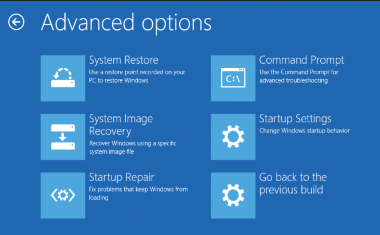
Windows has always offered some kind of recovery environment to help you troubleshoot things when your computer won’t start. In Windows 7, you can access certain advanced startup options—like booting into Safe Mode or getting to a Command Prompt by hitting F8 when your system is starting.
In Windows 8, 10 and 11, the advanced startup options work a bit differently, but they’re still there. If Windows cannot load normally, you’ll see those startup options automatically. To access them otherwise, go to Settings > Update & security > Recovery > Advanced Startup and click “Restart now.” You can also hold the Shift key as you click Restart in the Start menu.

The last tips for computer repair and maintenance are that you should defrag your disk and hardware for more space and wider PC size.
Defragmentation is the fragmentation reducing process in the file systems. Whenever you uninstall or delete files or software from your system, they will not be removed completely.
Above all, the remnants will be holding random memory spaces with no proper order. This is called fragmentation. Defragmentation will help to reduce the amount of fragmentation.
The hard disk will now find your files and submit them easily within a very short period of time


Recovering the computer overall system will help to restore your computer to an earlier point of the stage. You can perform this action while getting sudden system crashes or a Blue screen’s error.
Backing up your data is a way to make sure that your data is totally safe. If you have any unnecessary software, you should remove it forever from your computer. You will need to type “temp”, “%temp%” in the run command box and push the “delete” button to clear the temporary files or use disk cleanup of Windows.
These software and files are the main factors that occupy space in your hard disk and slow down the computer speed.
- Computer Network
- Data Recovery Services
- IT Business and Services
- IT Support Services
- On Site Support
- Remote Desktop Assistance
- Cloud Computing
- Information Security
One of the most overlooked aspects of owning a PC is having a proper backup solution in place for when something goes wrong. Anything from a power surge to a corrupt hard disk can cause you to lose years of information, including important documents, family photos, even your favorite music and films. Ensuring your system is backed up means that nothing is lost and everything is easily retrievable. Your backup needs may vary depending on how much you use your computer and what information you store on it.
Time-
- For a working person, his PC or laptop must be working properly. But, you get worried when your PC gets data unwanted stops or fails, you need to rush to the best PC repair shop to get an instant solution. But, you need to approach the computer repair shop, which is reliable and gets you time-
bound service. Hence, it is necessary to check with the history of the computer shop that it provides timely services for clients’ computers and laptops as per the commitment. Thus, it will make it convenient for customers to get their PCs or laptops serviced on time and their work will not halt for longer.
We provide different options of backup solutions:
- USB Flash Keys
- External hard drives
- On site automatic backup systems
- Online backup services
- Backup of hard drive to external device (not including cost of hardware)
- Backup of hard drive to online service (not including cost of service)
- Backup of hard drive to another computer (not including cost of hardware)
- Contact Darwin IT to set up a backup plan that is suitable for the size of your business.
OFFICE RELOCATION, DISCONNECTION, PACKAGING, RECONNECTION
Professional Packaging
Move and Reinstallation
Setting & Checkup
Training

Take notes of what you have done and all the error messages. You may need to use them later. For instance, when you see an unusual blue screen with an error message, copy the entire message on to a piece of paper. In many situations, that message may point to the right direction in getting the problem solved quickly.


| IT Services Repairs |
| IT Services Maintenance |
| Cloud Computing Security |
| AI and RPA |
| Cyber Security & Data Protect |