-
771 Windsurf Street, Roodepoort, SA
-
+27 83 319 7201
-
darwin.ait03@gmail.com


DARWIN IT
Computer repair &
Maintenance
It’s important to realize, that computer repair maintenance service solutions are a broad field encompassing many tools, techniques, and procedures. Used, in particular, for computer repair maintenance associated with general computing problems.
In other words, computer repair maintenance is also known as PC repair. And, therefore, this is the practice of keeping computers in a good working state away from repairs.
Computer Repair & Maintenance?
Computer repair maintenance is the process of identifying, troubleshooting, and resolving computing problems in computers (PC and Laptops), screens, and devices such as mobiles, routers, cards, etc. In addition, it includes managing faulty computer hardware, software, Ethernet, Internet, drivers, and more.
It’s a broad field encompassing many tools, techniques, and procedures used for keeping computers in good working condition. Also known as PC repair, this practice helps prevent the need for major repairs down the line.
Common Computer Errors
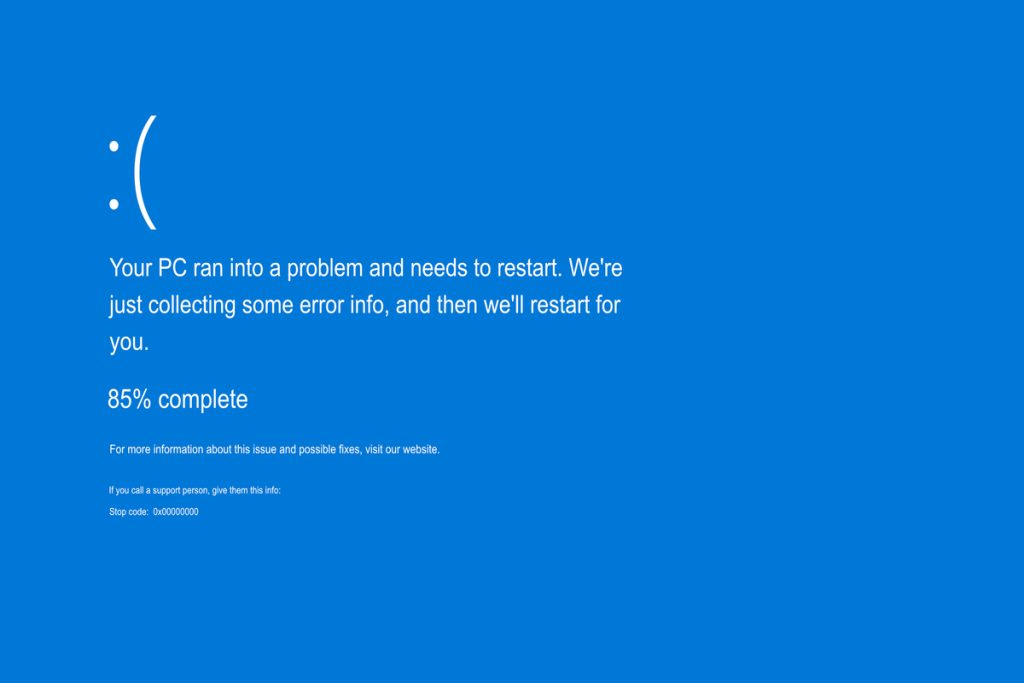
Blue Screen of Death (BSOD)
The Windows Registry holds information about hardware and software settings. If a malicious program corrupts the Registry, it may result in a blue screen error.
Solutions:
- Check for registry errors using repair software
- Edit the Registry manually (always backup first)
- Use third-party software to check and repair
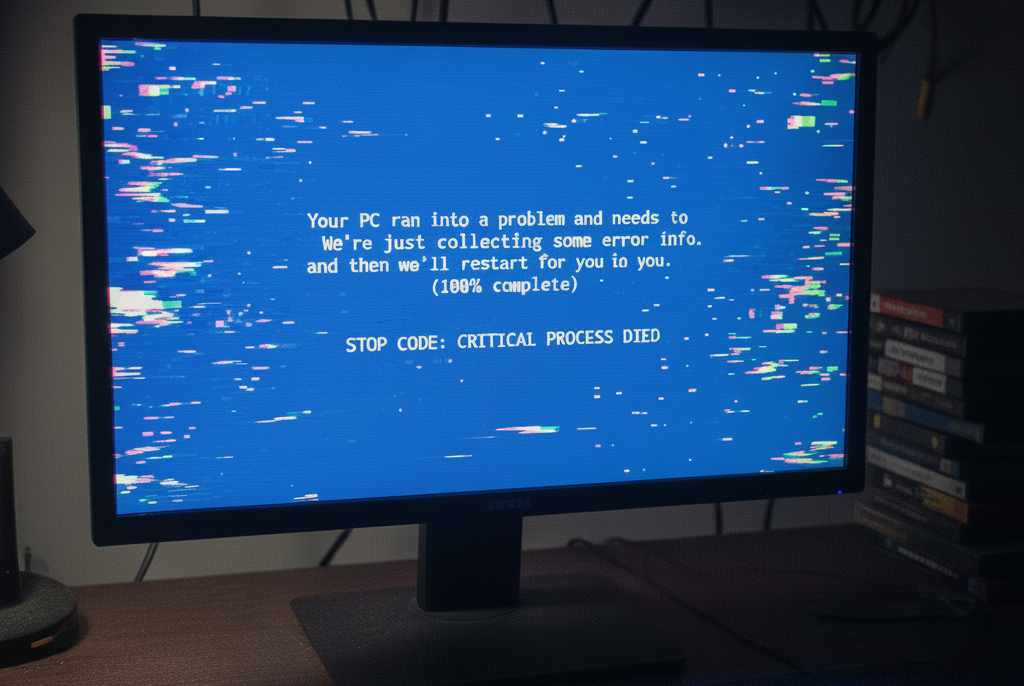
Computer Freezing
Your computer may freeze due to software or hardware problems. Finding the exact reason is key to solving the issue.
Common causes:
- Driver conflicts from peripherals
- Improper power or high temperature
- Memory or storage issues
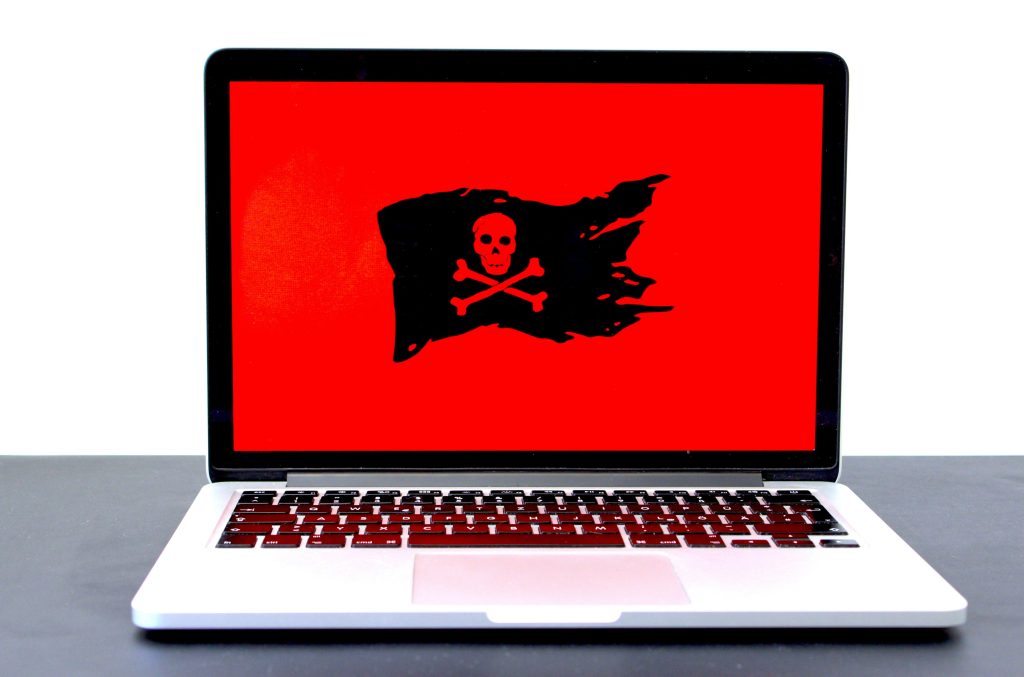
Virus & Malware Issues
Malicious programs can access your PC through loopholes in the operating system or application software.
Solutions:
- Scan your computer with proper anti-virus software
- Schedule regular updates and upgrades
- Keep your software database updated for full protection
Step-by-Step Troubleshooting Guide
1. Reset the Computer
If you leave the computer running all the time, fix errors by unplugging it, waiting a minimum of 30 seconds, and plugging it back in. Cutting power to the motherboard allows the hardware to reset and clear the memory.
2. Check Computer Temperature
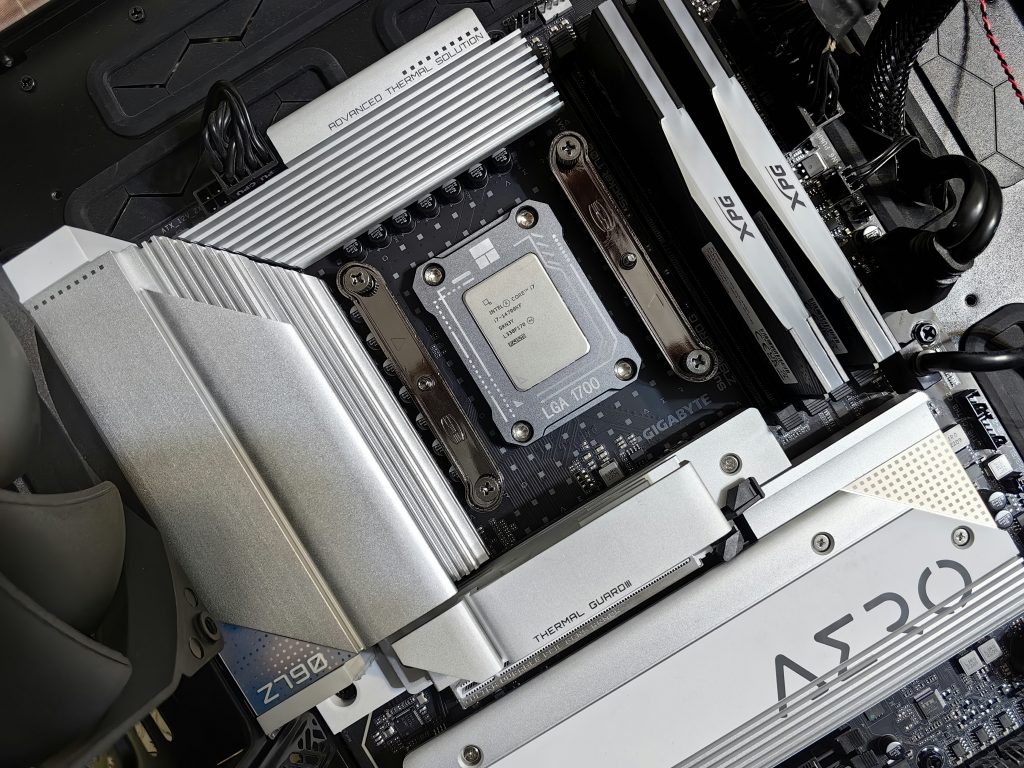
Open your computer cabinet (after shutting down and unplugging). If it’s really hot, there are thermal problems.
- Examine front and rear fans
- Blow out dust regularly
- Avoid installing multiple hard drives directly adjacent to each other
- Check all cables are still plugged in before closing the case
3. Access System Restore
Your hard disk stores information, and when used for long durations it can become cluttered and patchy, slowing performance. Use Windows utility CHKDSK to scan and remove bad sectors regularly. It’s the best preventive maintenance for computer health.
4. Inspect Device Disk Drives
During Windows Update, your system may download and install incorrect drivers, causing freezing. Check driver status from Device Manager. Unplug USB devices, power on your computer, and test. If issues persist, use System Restore to roll back to earlier drivers.
insights
Preventive Maintenance Tips
Regular Cleaning
Dust and small particles may cause blocks in your system and overheating problems. Clean your computer regularly with PC cleaning tools.
Update Security Software
The cyber-world is full of threats: worms, Trojans, spyware, and viruses. Always use an anti-virus guard, schedule regular updates, and upgrade frequently.
Backup Your Data
Backing up your data ensures it's totally safe. One of the most overlooked aspects of PC ownership is having a proper backup solution for when something goes wrong.
Run Error Checking
The disk error checking utility checks your hard disk for errors and repairs it. Schedule regular scans to maintain optimal performance.
Common Troubleshooting Techniques
Trial and Error
Personal computers are highly modular by design. The most powerful troubleshooting technique is to isolate the problem to a specific component. Swap compatible components and see if the system still works. Try different peripherals on different machines. Make one change at a time.
Don't Be Frustrated
Don’t be afraid of computer problems it’s often the best opportunity to learn. Troubleshooting is part of the fun of owning a computer. Imagine the satisfaction you could get by solving a problem yourself. Rule of thumb: Don’t spend more than three hours on the same problem at one time. If frustrated, leave it and return with fresh ideas or call for help.
Take Notes
Take notes of what you’ve done and all error messages. You may need them later. When you see an unusual blue screen with an error message, copy the entire message. In many situations, that message may point to the right direction for quick problem solving.
Take a Look Inside
It’s OK to open a computer case and look inside. There’s only 5V and 12V DC voltage supplied to components outside the power supply. Always power down and unplug the power cord first. Those who have never seen inside a computer are often amazed by how simple it looks.
"It's the Cable, Stupid!"
More than 70% of all computer problems are related to cabling and connections. Ensure all cables are connected firmly. IDE and floppy ribbon cables and power cables can often go loose. Ensure microprocessor, memory modules, and adapters like video cards and sound cards are inserted correctly and didn’t pop up during transportation.
Windows Backup & Recovery Tools
Windows includes several different types of backup and recovery tools. Sometimes, bad things happen to good computers. Fortunately, Windows includes tools to ensure your files are properly backed up and to recover your computer should you need to.
Windows File History
File History was first introduced in Windows 8 and continues to be the primary built-in backup solution in Windows 10 and 11. It doesn’t create a full backup of your entire PC, but focuses on making sure your personal files are backed up.
Features:
- Backs up Desktop, Documents, Downloads, Music, Pictures, Videos, and parts of AppData
- Regularly backs up files automatically
- Retains previous versions of files you can easily restore
- Allows you to exclude folders or add custom folders
- Browse through backed up files and folders when recovering
- Restore previous versions directly from File Explorer
Backup and Restore (Windows 7)
Microsoft kept the old Backup and Restore feature from Windows 7 around. It’s available in Windows 10 and 11. This tool allows you to restore any old Windows 7 backups and create new backups in the same way.
Key difference: Unlike File History, you can use Backup and Restore to create a backup of practically everything on your hard drive. However, it doesn’t maintain older versions of your files.
System Image Backups
Available in the Backup and Recovery (Windows 7) tool, this creates an image snapshot of your entire system—personal files, installed apps, operating system files, and everything else.
Advantages:
- Complete system restoration if hard drive fails
- No need to reinstall Windows or applications
- Return to exactly where you left off
Disadvantages:
- Slower backup process
- Requires larger storage drive
- Can’t reliably recover individual files all-or-nothing approach
OneDrive
OneDrive is now fully integrated into Windows. Files stored in OneDrive are saved locally, in the cloud, and on any other synced devices. If you restart Windows from scratch, just log in to OneDrive to retrieve your stored files.
System Restore
When Windows problems won’t fix with regular troubleshooting, System Restore should be next on your list. It’s great for fixing problems caused by newly installed apps or hardware drivers.
System Restore creates “restore points” snapshots of your Windows system files, certain program files, registry settings, and hardware drivers. Windows automatically creates a restore point weekly and before major system events. You can create restore points manually at any time.
Advanced Startup Options
Windows has always offered recovery environments to help troubleshoot when your computer won’t start. In Windows 7, you can access advanced startup options (like Safe Mode or Command Prompt) by hitting F8 during startup.
In Windows 8, 10, and 11, advanced startup options work differently but are still available. If Windows can’t load normally, you’ll see startup options automatically. To access otherwise, go to Settings > Update & security > Recovery > Advanced Startup and click “Restart now.” You can also hold Shift while clicking Restart in the Start menu.
Our Backup Solutions
One of the most overlooked aspects of owning a PC is having a proper backup solution for when something goes wrong. Anything from a power surge to a corrupt hard disk can cause you to lose years of information, including important documents, family photos, music, and films. Your backup needs may vary depending on how much you use your computer and what you store on it.
- USB Flash Keys
- External Hard Drives
- On-Site Automatic Backup Systems
- Online Backup Services
- Hard Drive to External Device Backup
- Hard Drive to Online Service Backup
- Hard Drive to Computer Backup
Contact Darwin IT to set up a backup plan suitable for the size of your business.
Why Choose Darwin IT?
For working professionals, your PC or laptop must be working properly. When your PC experiences unwanted stops or failures, you need to rush to the best PC repair shop for an instant solution. Darwin IT is reliable and provides time-bound service.
We have a proven history of providing timely services for clients’ computers and laptops as per commitment, making it convenient for customers to get their PCs or laptops serviced on time so their work doesn’t halt for long.

Explain To Us The Issue
contact us
Find us Here
- 771 Windsurf Street
- Roodepoort, Gauteng
Training Hours
- Mon- Fri: 7am- 5pm
- Saturday: 9am-1pm